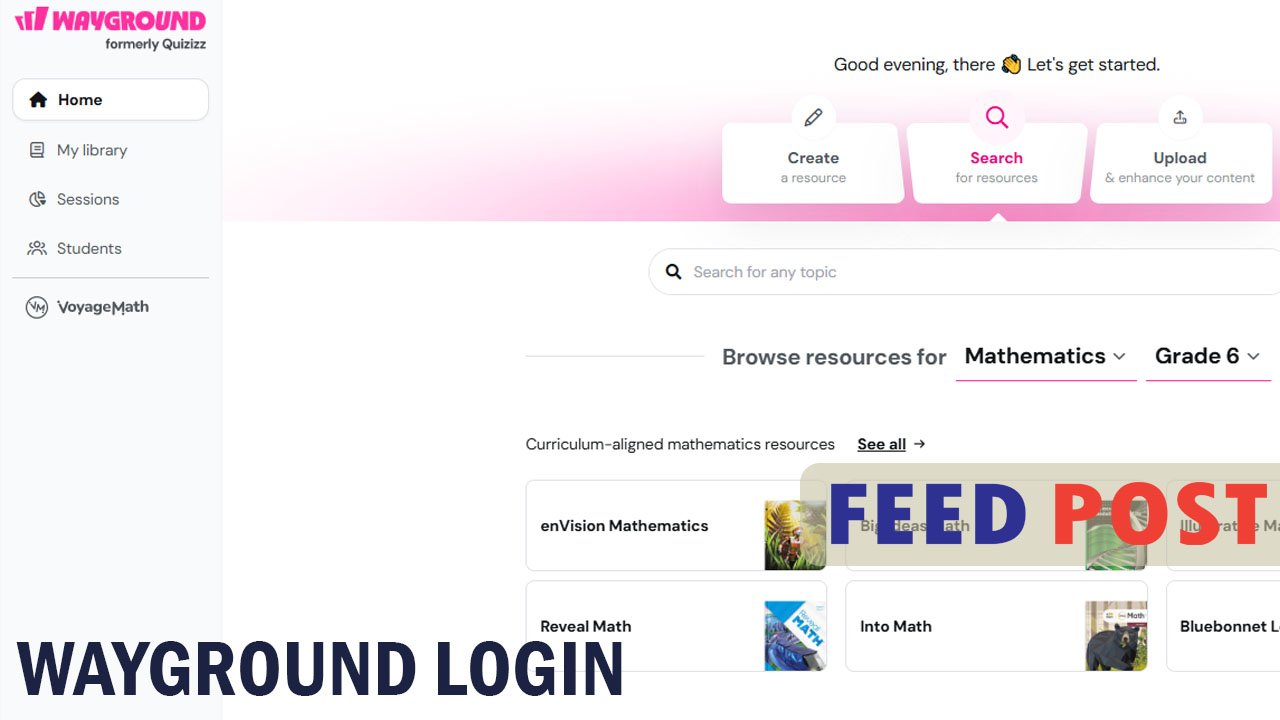
Wayground login is the first step every teacher and student needs to reach their quizzes, classes, and learning tools on this popular platform. Wayground, formerly known as Quizizz, has kept the same friendly design while giving its sign-in process a fresh look. Many users still search for help because the rebrand changed some screens, and a few people run into small login errors along the way. This guide walks you through the exact steps to sign in, explains your login options, and shows you how to solve the most common problems quickly.
What Is Wayground?
Wayground is an online learning platform that helps teachers create quizzes, worksheets, and interactive lessons for their classrooms. It was previously called Quizizz, and the new name reflects a broader goal of building a shared space where teachers, students, and even businesses can learn together. The platform is trusted by educators in a large share of U.S. schools and is used in more than 150 countries.
Students can join a quiz using a simple class code, often without creating an account at all. Teachers, on the other hand, need a full account to build content, track scores, and manage their classes, which is why understanding the login process matters.
How to Log In to Wayground
Signing in to Wayground takes only a few steps. First, open your browser and go to wayground.com, then click the “Log in” button in the top right corner of the homepage. Next, choose your preferred sign-in method: Google, Microsoft, Apple, Clever, ClassLink, or a plain email and password.
After you select a method, enter the login details tied to that account. If you use Google or Microsoft, you may need to confirm your identity with a password or a verification code before Wayground grants access. Once your credentials are accepted, the platform redirects you straight to your dashboard, where your quizzes, classes, and reports are waiting.
Login Options Explained
Wayground supports several sign-in methods so users can pick whatever feels easiest. Continuing with Google is popular among teachers who already use Gmail or Google Classroom, since it links accounts in one click. Email and password login works well for anyone who prefers a traditional setup, and it only requires a valid address and a password of at least six characters.
School and district accounts often rely on single sign-on through Clever or ClassLink. This option lets students and staff use the same credentials they already use for other school systems, removing the need to remember yet another password. Once an organization sets up this integration, users simply search for the Wayground app inside their Clever or ClassLink dashboard and click through to log in automatically.
Common Login Problems and Fixes
Most Wayground login issues come from simple, fixable causes. A wrong password is the most frequent culprit, so double-check for typing mistakes or an accidentally activated Caps Lock key before requesting a reset. If the page freezes or won’t load, clearing your browser cache or trying a different browser usually solves the issue right away.
Account mix-ups also happen often, especially when someone has signed up with Google in the past but tries to log in with email instead. If this happens, go back to the login screen and try the original sign-in method you used when creating the account. For SSO users, an error usually means the school’s system is temporarily down, so waiting a few minutes or contacting the IT department often clears it up.
Resetting Your Wayground Password
Forgetting a password is common, and Wayground makes recovery simple. On the login page, click “Forgotten password” and enter the email address linked to your account. Wayground then sends a reset link to that inbox, and clicking it lets you create a new password right away.
If the reset email does not arrive within a few minutes, check the spam or promotions folder first. Should the problem continue, confirm that you are using the exact email address tied to your account, since a small typo will prevent the message from arriving at all.
Logging In Without an Account
Students do not always need a Wayground account to join a class activity. Teachers share a short class code or a direct link, and students simply visit wayground.com/join, type in the code, and start playing. This setup works well for younger learners or quick classroom reviews where creating a full profile isn’t necessary.
However, logging in with an account offers real advantages for regular users. It saves quiz history, tracks performance over time, and lets students revisit worksheets or reports whenever they need them. Teachers should encourage students to create accounts if they plan to use Wayground consistently throughout the school year.
Tips for a Smooth Login Experience
A few simple habits can prevent most login headaches before they start. Always use an updated browser version, since older browsers sometimes struggle with modern login screens. Saving your password in a trusted password manager also reduces the risk of lockouts caused by forgotten credentials.
It also helps to stick with one consistent login method rather than switching between Google, email, and SSO. Mixing methods is the leading cause of “account not found” errors, so choosing one and sticking with it keeps future logins fast and frustration free.
Conclusion
Wayground login is a quick process once you know which sign-in method matches your account. Whether you use Google, email, or school-based SSO, following the right steps gets you into your dashboard in moments. With the fixes and tips shared above, most login problems can be solved without any outside help.
Frequently Asked Questions
1. Is Wayground the same as Quizizz?
Yes. Wayground is simply the new name for Quizizz, and all existing accounts, quizzes, and data transferred over automatically.
2. Do students need an account to join a Wayground quiz?
No. Students can join most quizzes with just a class code at wayground.com/join, though creating an account lets them save their progress.
3. What should I do if I forget my Wayground password?
Click “Forgotten password” on the login page, enter your linked email, and follow the reset link sent to your inbox.
4. Can I log in to Wayground using my school account?
Yes. Wayground supports SSO through Clever and ClassLink, letting students and teachers use their school credentials to sign in.
5. Why does Wayground say my account was not found?
This usually happens when you try a different login method than the one used during sign-up, so try the original method first.
Unlock a world of new ideas and sharp commentary at Feed Posts.