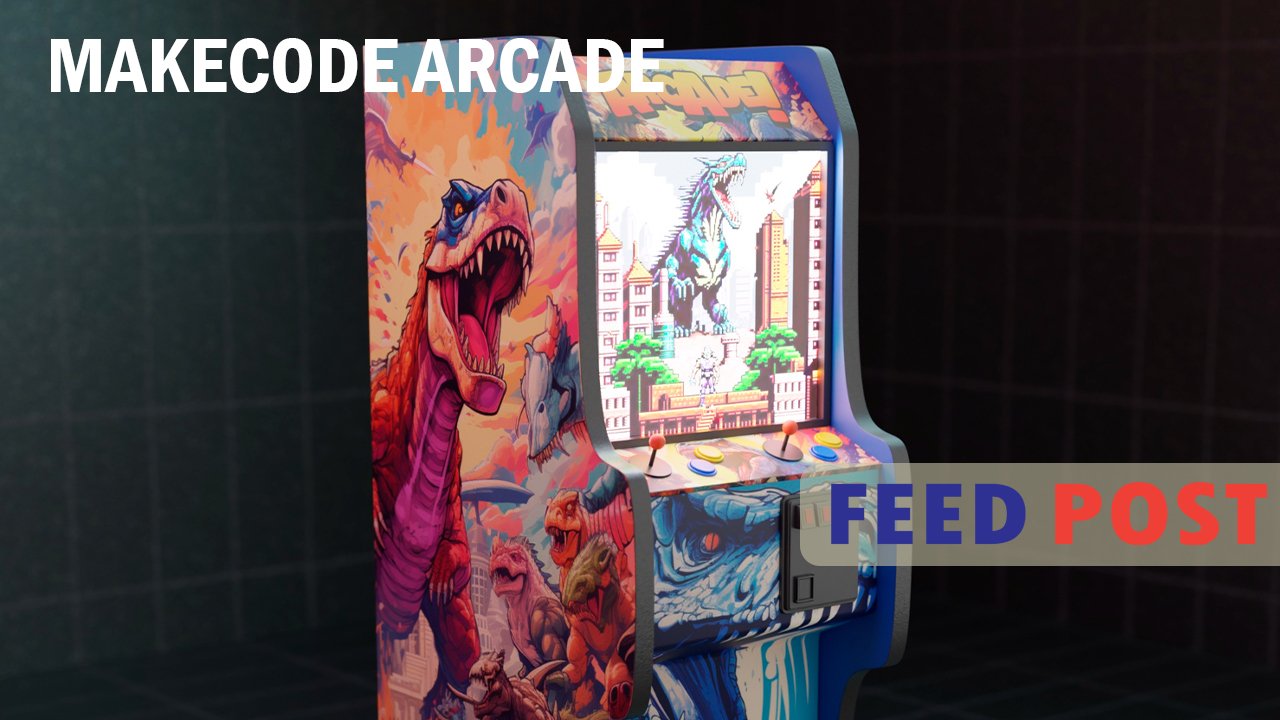
MakeCode Arcade is a free online tool from Microsoft that teaches coding through game design. Instead of staring at blank screens full of confusing text, learners drag simple blocks together and watch their ideas turn into playable retro games within seconds. This hands-on approach makes it a favorite in classrooms, coding clubs, and homes around the world. Whether the goal is to build a maze game, a spaceship shooter, or a treasure hunt, MakeCode Arcade gives beginners a friendly starting point and experienced coders room to grow.
What Is MakeCode Arcade?
MakeCode Arcade is a browser-based game development platform built by Microsoft. It grew out of the original MakeCode editor, which was first designed for the BBC micro:bit, a small programmable device used in schools. Microsoft later expanded the platform to include Arcade, a version focused entirely on making 2D retro games similar to the ones found on classic handheld consoles.
The platform works entirely online, so there is nothing to install. Users open the editor in a web browser, choose a project template or start from scratch, and begin building. Games can be played instantly in a built-in simulator, and finished projects can be shared with friends or downloaded to compatible handheld devices.
How MakeCode Arcade Works
The editor offers two main ways to code: Blocks and JavaScript. Blocks work like puzzle pieces that snap together, showing commands such as “move sprite” or “change score” in plain language. This visual system removes the need to memorize syntax, which makes it ideal for younger learners or anyone new to programming.
As skills grow, users can switch the same project into JavaScript with a single click. This feature helps learners see how each block translates into real code, building a bridge between visual programming and traditional text-based languages. Some versions of the platform also support Python, giving learners even more flexibility as they advance.
Key Features That Make It Useful
MakeCode Arcade includes several tools that make game creation approachable and enjoyable. Sprites, which are the characters and objects in a game, can be drawn directly in the editor or picked from a built-in gallery. Tilemaps let users design entire game levels by placing tiles like walls, floors, and obstacles onto a grid.
The platform also includes a live simulator that shows changes instantly, so learners never have to guess whether their code works. Step-by-step tutorials walk beginners through common game mechanics, such as scoring, collisions, and win-or-lose conditions, while a large project gallery lets users explore and remix games made by others.
Who Can Use MakeCode Arcade
MakeCode Arcade is designed for a wide range of ages and skill levels, though it is especially popular with students in elementary and middle school. Teachers often use it to introduce computer science concepts because it requires no prior coding knowledge and produces visible, exciting results within minutes.
At the same time, the platform is not limited to children. Hobbyists, parents learning alongside their kids, and even adult beginners use MakeCode Arcade to explore programming logic in a low-pressure environment. Because projects can move from simple blocks to full JavaScript, the tool supports learners well beyond their first lesson.
Benefits of Learning With MakeCode Arcade
One of the biggest advantages of MakeCode Arcade is instant feedback. When a learner changes a block, the simulator updates right away, helping them understand cause and effect without long delays. This immediate response keeps motivation high and reduces frustration, especially for younger students.
The platform also encourages creative problem-solving. Instead of following rigid instructions, learners decide how their game should look, behave, and be won or lost. This freedom teaches logical thinking, patience, and persistence, skills that carry over into other areas of learning far beyond computer science class.
Getting Started With MakeCode Arcade
Starting a project takes only a few steps. Users visit the MakeCode Arcade website, choose a tutorial or blank project, and begin dragging blocks into the workspace. No account or download is required to start experimenting, though creating a free account allows projects to be saved and shared later.
For those who want to bring games into the physical world, MakeCode Arcade supports several handheld devices, such as the Meowbit and BrainPad Arcade. These small consoles let learners download their finished games from the browser and play them on real hardware, adding an extra layer of excitement to the learning process.
Conclusion
MakeCode Arcade offers a simple, engaging way to learn programming by building real games from the very first session. Its mix of visual blocks, text coding, and instant feedback makes it suitable for beginners and growing coders alike. Whether used in a classroom or at home, it turns coding practice into something genuinely fun to explore.
Frequently Asked Questions
Is MakeCode Arcade free to use?
Yes, MakeCode Arcade is completely free and works directly in a web browser without any downloads.
Do I need coding experience to use MakeCode Arcade?
No, the platform is designed for beginners and uses simple drag-and-drop blocks that require no prior experience.
Can MakeCode Arcade games run on real devices?
Yes, finished games can be downloaded to supported handheld devices like the Meowbit and BrainPad Arcade.
What coding languages does MakeCode Arcade support?
It supports visual Blocks, JavaScript, and in some versions, Python for more advanced learners.
Who is MakeCode Arcade best suited for?
It is ideal for students, teachers, and beginners of any age who want to learn coding through hands-on game design.
Unlock a world of new ideas and sharp commentary at Feed Posts.