Clever DISD gives Dallas Independent School District students one simple login for dozens of learning apps, and this guide walks you through every step to sign in, troubleshoot problems, and get back to learning fast. Whether you are a parent helping a child at home or a student who forgot a password, this article covers everything you need in plain, clear language.
What Is Clever DISD?
Clever is a single sign-on platform that Dallas ISD uses to connect students and teachers to nearly 50 instructional apps, including IXL, HMH, and other textbook resources. Instead of remembering dozens of usernames and passwords, students log in once through Clever and gain instant access to every approved app for their grade level.
The district’s Educational Technology department manages Clever DISD, and it works closely with Textbook Services to keep classroom materials up to date. Teachers can also use Clever to assign work that supports classroom lessons, which makes it a central hub for both in-school and at-home learning.
How to Log In to Clever DISD
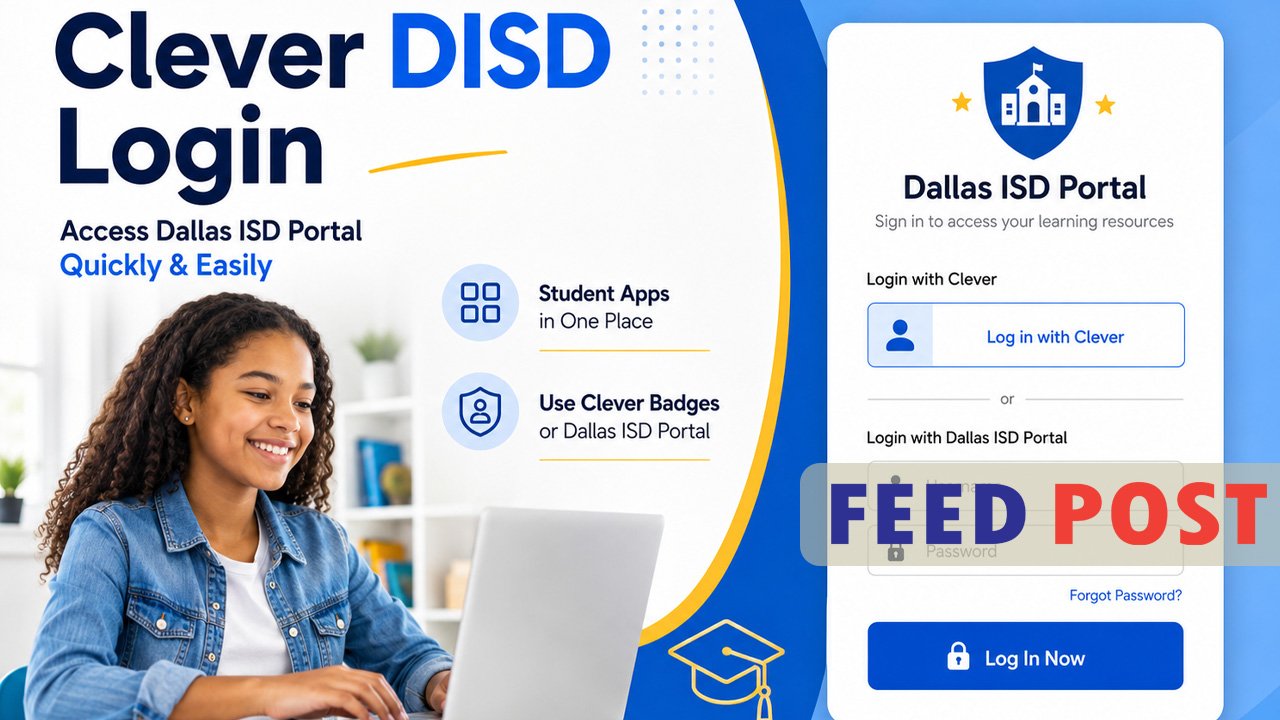
Students can reach Clever DISD in two main ways. The first is through the official Dallas ISD Clever portal link, where students choose their school and sign in with a district username and password. The second option is the Clever Badge method, which lets younger students scan a picture badge instead of typing a password, a feature many elementary schools use.
Parents can also find the Clever for Students link on the Dallas ISD Parents and Students page under Educational Technology. Once logged in, the Clever dashboard displays every app the student’s account has been granted access to, so there is no need to search for separate websites or bookmarks.
Common Login Problems and How to Fix Them
Login issues usually fall into a few simple categories, and most have quick fixes. A forgotten password is the most frequent problem, and Dallas ISD offers a dedicated Student Password Reset tool through its portal so students can reset their credentials without waiting for a technician.
Another common issue happens when a student cannot see an expected app on their Clever dashboard. This usually means a teacher has not yet activated that application for the class, so the fix often starts with checking with the teacher before assuming there is a technical error. If the problem continues, students and parents can submit a ticket through the Dallas ISD IT Service Portal and select the correct category for faster help.
Who Can Use Clever DISD?
Clever DISD serves students across every grade level, from elementary through high school, along with teachers who assign digital coursework. Parents also benefit because many of the connected apps, like the PowerSchool Parent Portal, work alongside Clever to give families a complete view of assignments and progress.
Access depends on active enrollment status, so students must be currently enrolled in Dallas ISD to use their Clever account. Each account is tied to a specific school and grade, which ensures that students only see age appropriate content and approved learning tools.
Getting Help from Dallas ISD Support
When self-service tools are not enough, Dallas ISD provides multiple support channels. The district’s Help Desk answers calls at (972) 925-5630 Monday through Friday from 7 a.m. to 5 p.m., and families can also use the Onflo communication tool, formerly known as Let’s Talk, to submit questions directly to the Educational Technology team.
For technical issues tied to a specific app inside Clever, such as a textbook program not loading correctly, the Textbook Services team recommends submitting a ticket through the IT Service Portal and selecting “Instructional Applications” as the affected service. Including the exact app name and a short description of the issue helps staff resolve problems more quickly.
Conclusion
Clever DISD makes learning simpler by putting every approved app behind one easy login. When problems come up, Dallas ISD offers clear tools like password resets, help desk support, and online ticket submission, so students rarely stay stuck for long.
Frequently Asked Questions
What is Clever DISD used for?
Clever DISD gives Dallas ISD students a single login to access nearly 50 learning apps, including IXL and HMH textbook programs, without needing separate passwords for each one.
How do I reset my Clever DISD password?
Students can reset their password using the Student Password Reset tool available through the Dallas ISD portal, which restores access without contacting IT staff directly.
Why can’t I see an app on my Clever dashboard?
The app may not be activated yet for your class. Check with your teacher first, since teachers must turn on access before students can see certain apps.
Who do I contact for Clever DISD login help?
Call the Dallas ISD Help Desk at (972) 925-5630, Monday through Friday from 7 a.m. to 5 p.m., or submit a ticket through the IT Service Portal.
Can parents access Clever DISD?
Yes, parents can find the Clever for Students link on the Dallas ISD Parents and Students page and use it to help their child log in and access assignments.
Unlock a world of new ideas and sharp commentary at Feed Posts.